Ebero Notification Banners (ENB) v3.0.0
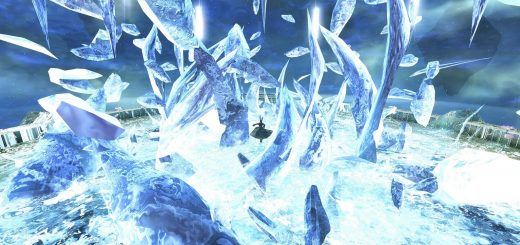
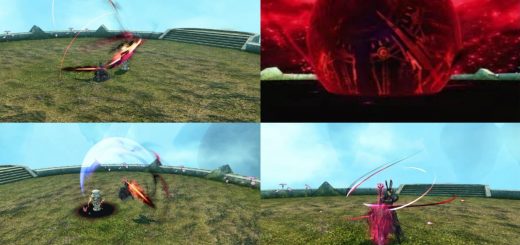
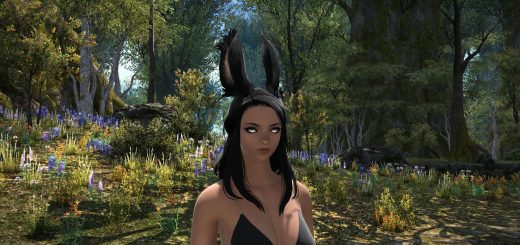
Ebero Notification Banners (ENB) redesigns FFXIV notification artwork with Crystal and Fantasy visual styles, custom Class & Job banners, and World & Location artwork. It changes visuals only and does not modify gameplay.
Features
- Two distinctive notification styles: Crystal and Fantasy Edition.
- Custom artwork for quests, duties, FATEs and other notifications.
- Additional Fantasy Edition notification designs.
- Three independently configurable Penumbra modules.
- High Resolution UI support.
- Visual replacements only, with no gameplay modifications.
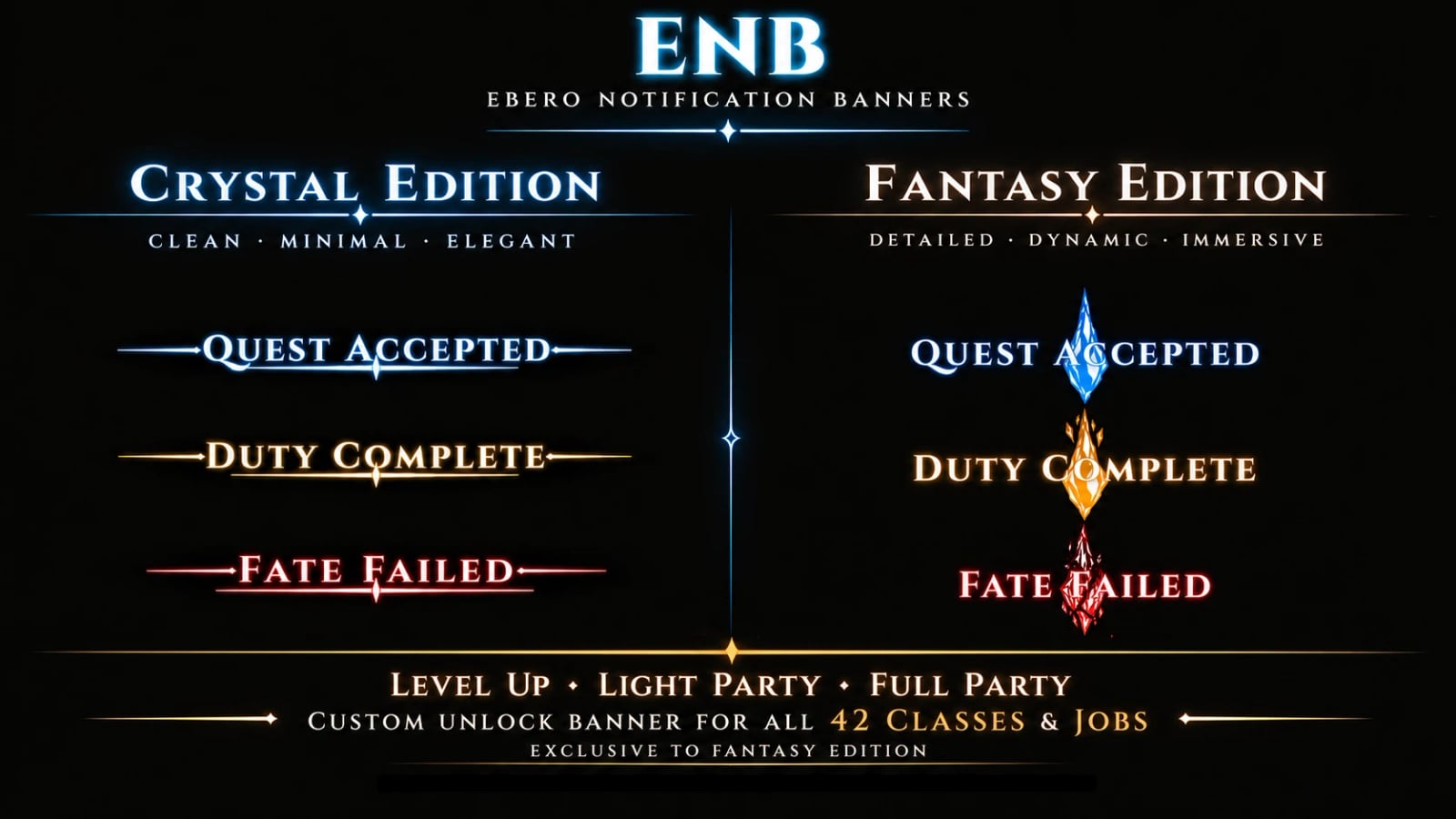
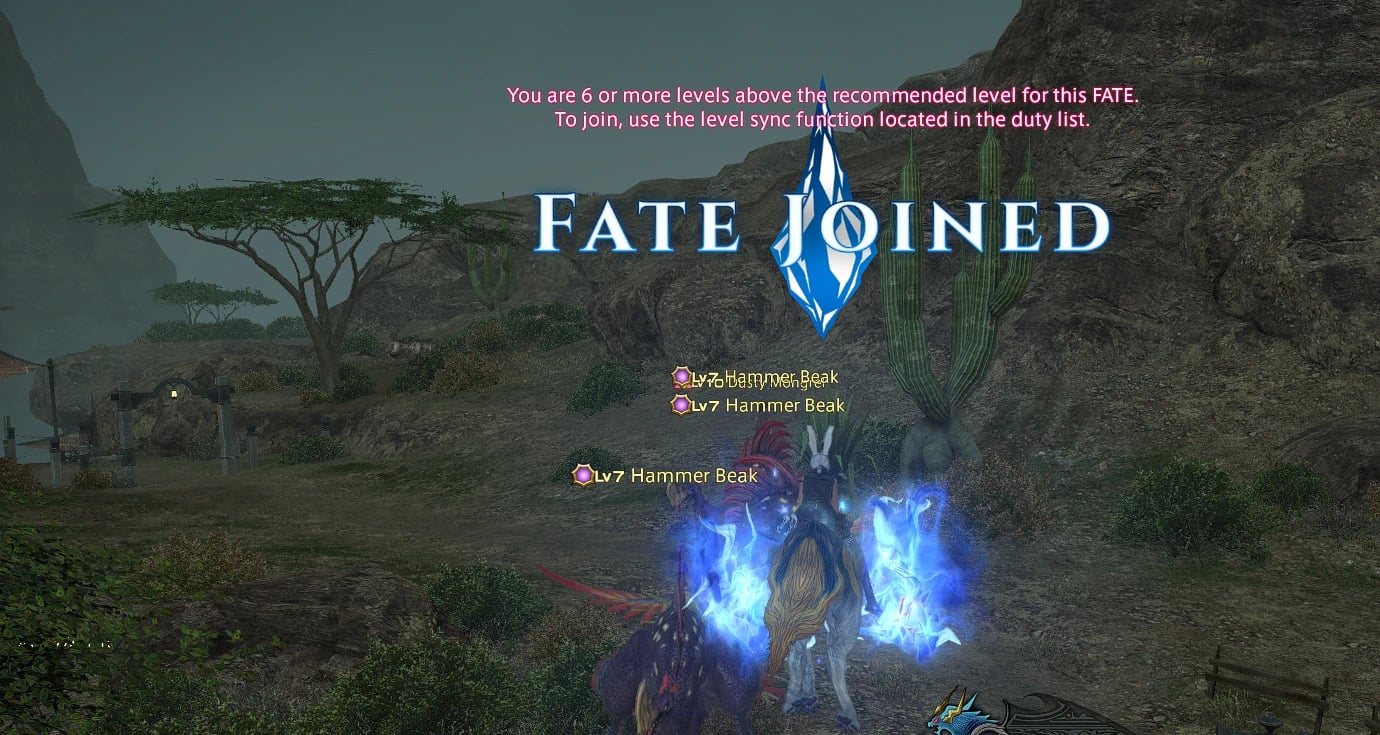
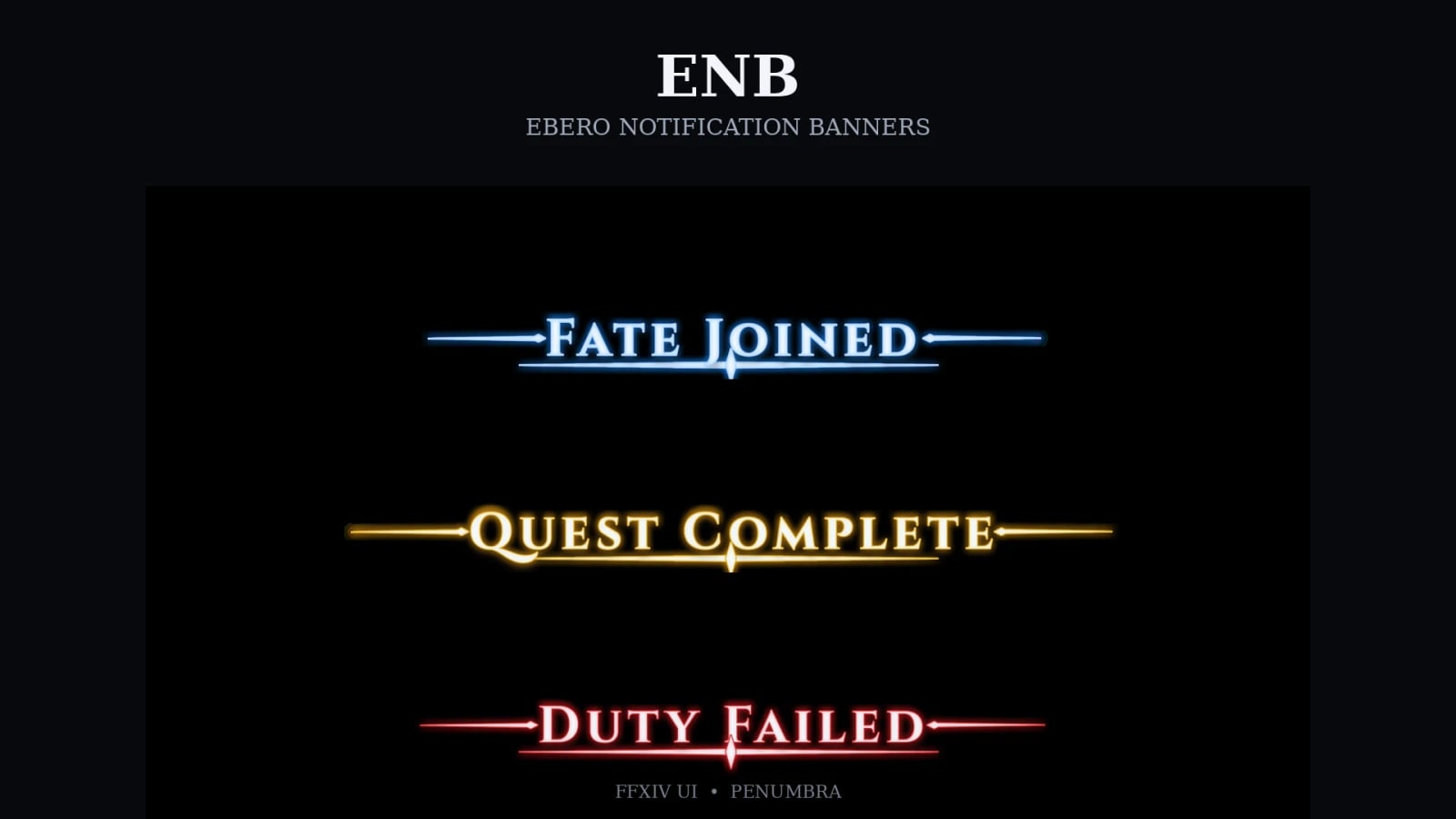
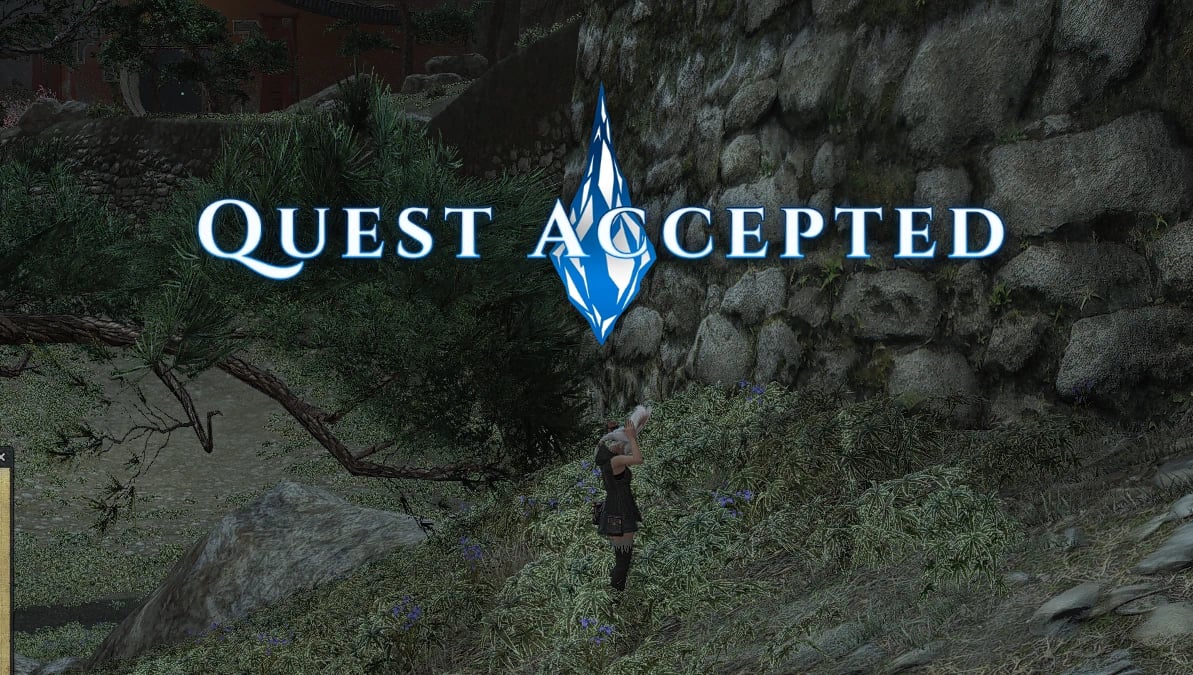
Crystal Edition has a clean visual style inspired by crystalline elements. It includes redesigned Quest Accepted & Quest Complete, Duty Commenced, Duty Complete & Duty Failed, Levequest Accepted & Levequest Complete, and FATE Joined, FATE Complete & FATE Failed banners. The original Crystal Edition remains unchanged in V3.0.0.
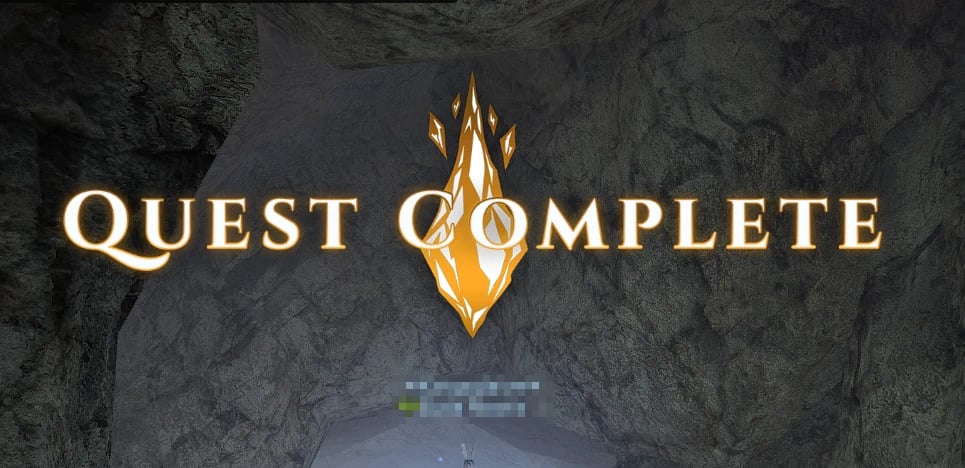
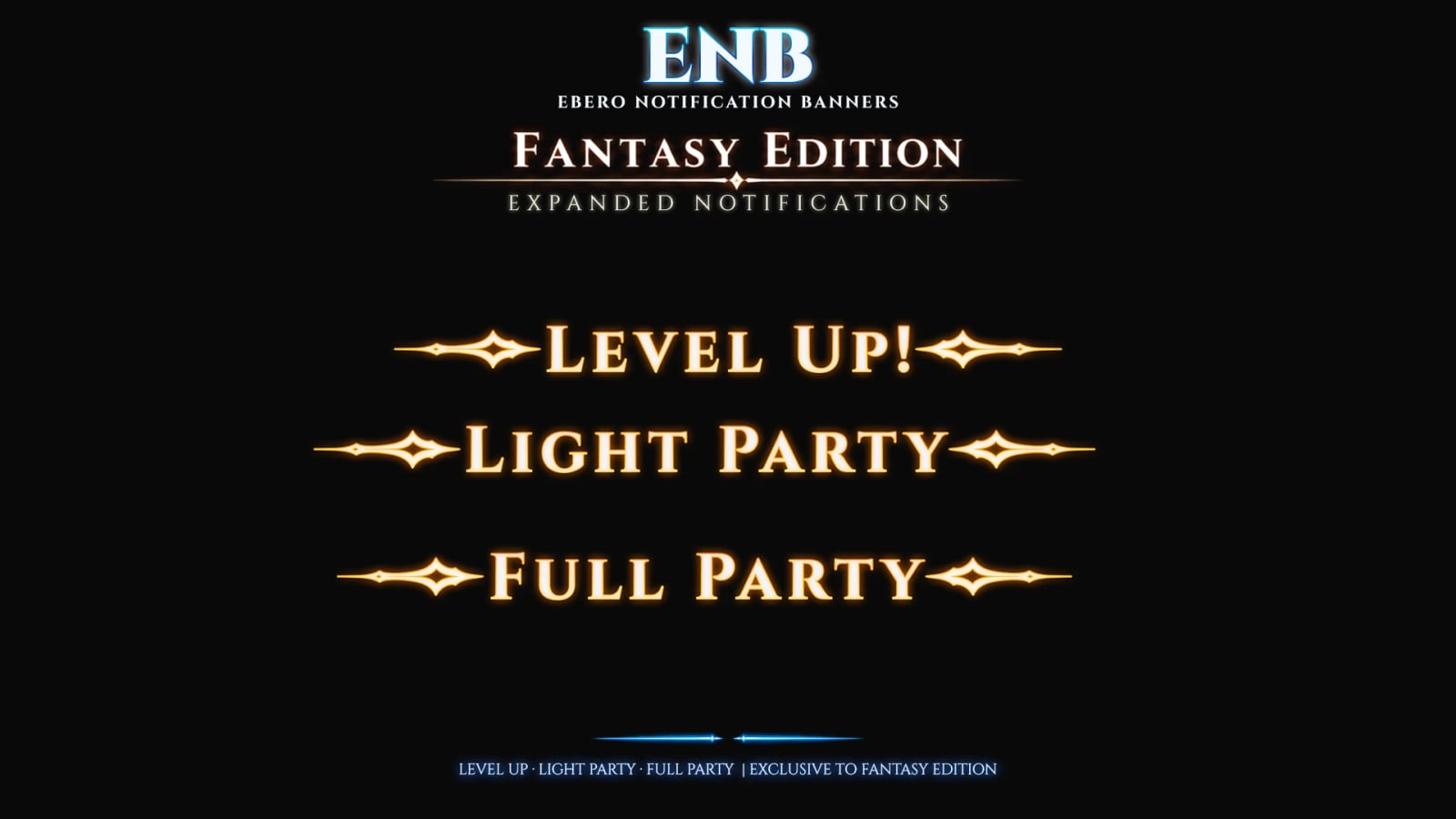
Fantasy Edition uses more elaborate Final Fantasy-inspired artwork. It includes Quest Accepted & Quest Complete, Duty Commenced, Duty Complete & Duty Failed, Levequest Accepted & Levequest Complete, FATE Joined, FATE Complete & FATE Failed, FATE Bonus Notifications, Delivery Complete, Venture Commenced & Venture Accomplished, Level Up, and Light Party & Full Party. Fantasy Edition is now the default notification style.
Class & Job Banners includes custom unlock banners for all 42 Classes & Jobs. The collection can be enabled or disabled independently in Penumbra and is enabled by default.
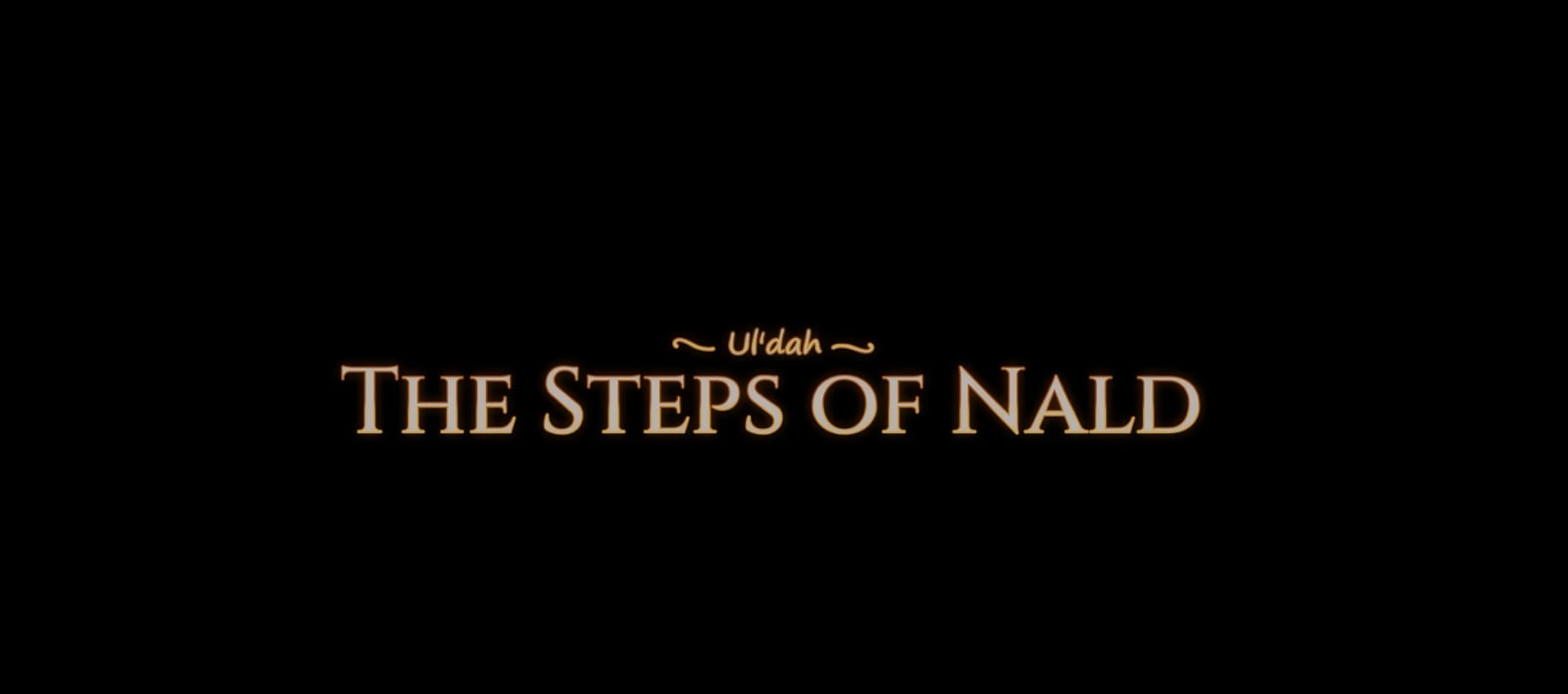
World & Locations introduces custom artwork for regions and territories, cities and settlements, open-world zones, city districts, and special locations. The collection can be enabled or disabled independently and is enabled by default.
Dungeon, Trial and Raid banners are not included in this release.
Specifications
- Class & Job unlock banners: 42
- Base Classes: 9
- Disciples of the Hand: 8
- Disciples of the Land: 3
- Combat Jobs: 22
- World & Location banners: 104
- Version: 3.0.0
Installation
- Install and configure Dalamud and Penumbra.
- Download the ENB zip
.pmppackage from the Files tab. - Import the package into Penumbra.
- Enable ENB in your Interface collection.
- Configure the available modules in the mod settings.
Settings and configuration
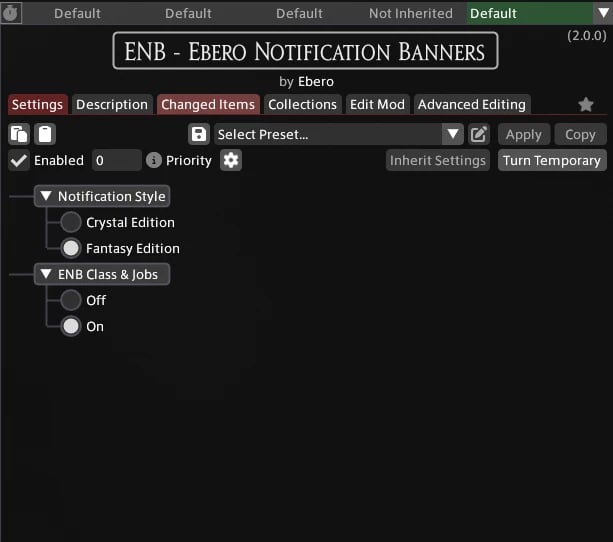
Penumbra Configuration
Base Notifications
- Fantasy Edition – Default
- Crystal Edition
Jobs
- On – Default
- Off
World & Locations
- On – Default
- Off
Each module can be configured independently. If you previously installed ENB V2.0.0, disable or replace the older version to avoid overlapping texture replacements.
Compatibility
ENB is designed for FFXIV’s High Resolution UI and English-language UI asset paths.
Other mods replacing the same textures may conflict. Check Penumbra priorities if a banner does not appear.
Version 3.0.0 has undergone technical validation and in-game testing. Due to the large number of supported notifications and locations, some less frequent banners may not yet have been individually encountered during gameplay.
If you encounter missing artwork, incorrect replacements or compatibility issues, report them with the notification or location name.